Navigation mesh pathfinding
The Pathfinding behavior allows to move objects to a selected destination as well as to flag items as obstacles. Objects that are flagged as obstacles will be avoided by the moving objects.
Choose which objects to avoid
By using the Obstacle for Pathfinding (navmesh-based) behavior, you can flag any object to be an obstacle.
When the behavior is added to an object, some properties can be modified:
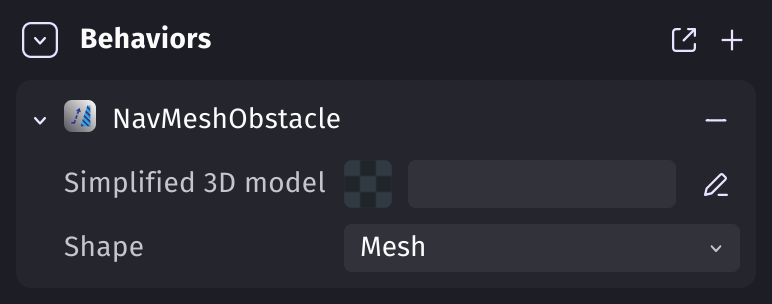
These properties are only relevant for 3D model objects. The 2D collision mask is always used for 2D objects.
- Shape – You can choose between using the model shape (Mesh) or a bounding box (Box).
- Simplified 3D model – Models with a lot of polygons can require heavy computations. You can make a simplified version of your model with an external tool and add it in this property to make the obstacle faster to compute.
Tip
If you need objects to move in only 4 or 8 direction, you can use the grid-based pathfinding instead.
Note
Tile maps can also be used as obstacles: add the Obstacle for Pathfinding (nav-mesh based) behavior to a tile map that has collisions, and the moving objects will avoid its tiles.
Move objects while avoiding obstacles
The Pathfinding character (navmesh-based) behavior allows to compute the shortest path from the object to a destination, and optionally move the object to this destination, while avoiding all objects that have the Obstacle for Pathfinding (navmesh-based) behavior.
After adding the behavior to the object, you can customize some properties:
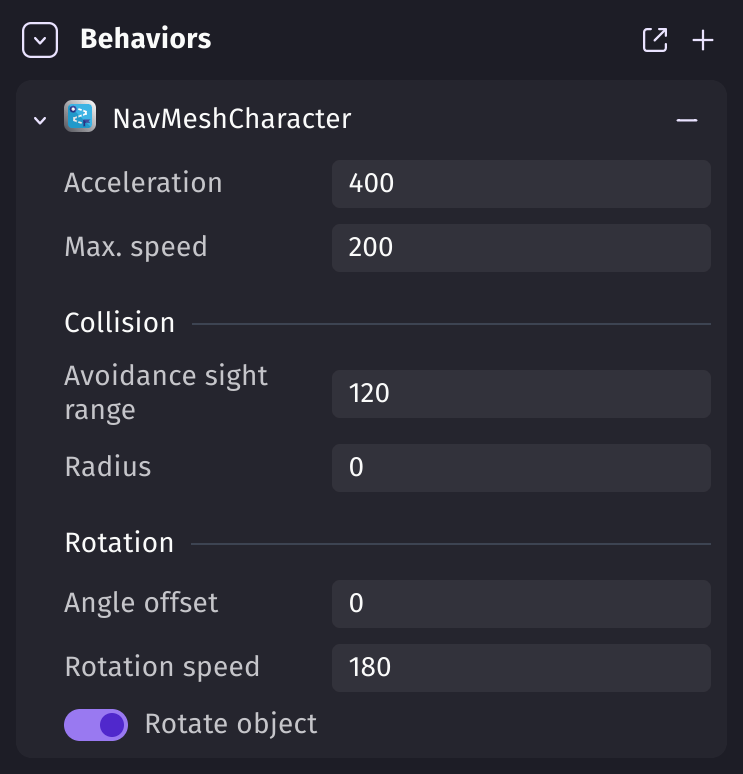
- Radius – The half-size of the character. This setting determines how close the object can move to obstacles.
- Avoidance sight range – How far ahead the character looks to avoid other characters.
- Acceleration – How fast the object is going to accelerate while moving on a path.
- Max speed – Maximum speed the object can move on the path.
- rotate object – If you don't want the object to rotate while moving on the path, disable the object's rotation.
- Rotate speed – The speed of the object's rotation.
- Angle offset – In case the sprite is facing the wrong direction, you can fix it with the angle offset
Note
If you want to change how the object moves during the game, these properties can be changed using actions.
To make the character move, you need to add the Move to a position action and specify the destination.
For instance, to move a character to the cursor, you can do the following in 2D:

or in 3D (using the 3d raycast extension):

Warning
The Move to a position action only needs to be run once. If you run this action without any condition, it will try to compute the path at every frame. This will generate a lot of intensive computations for your device. You can add the Destination reached condition or use a timer to solve this.
Avoid frame skipping when modifying obstacle
When obstacles are moved, created, deleted or their behavior is deactivated or activated back, the navigation mesh is updated for the next frame and it can take more than 1/60 second which leads to frame skipping.
You can reduce this side effect by:
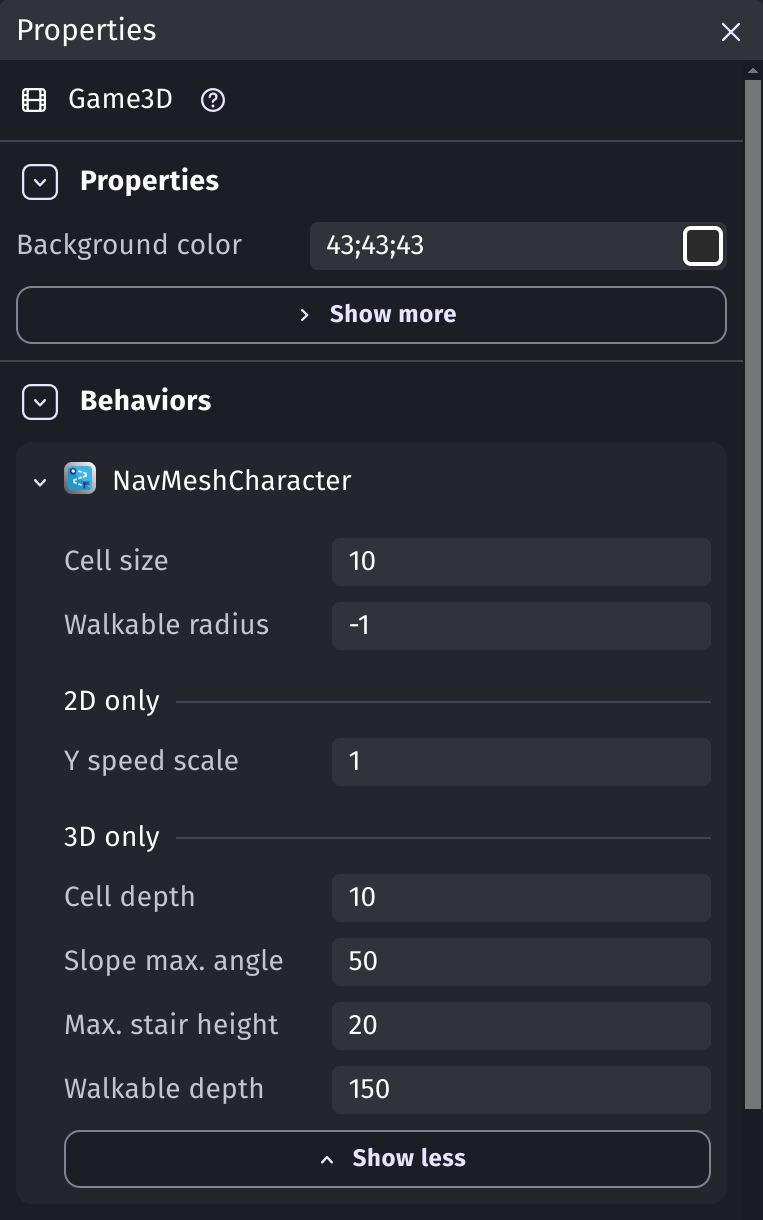
- Making Cell size and Cell depth bigger in the scene properties.
- Setting a Simplified 3D model for obstacles that use a Mesh shape. The simplified model should have the least amount of polygons possible. For instance, a ramp often only need 5 faces.
- Making a chunk system that destroys obstacles that are faraway by batch.
Troubleshoot navigation mesh generation
You can display the generated navigation mesh with the Draw pathfinding walkable area action.
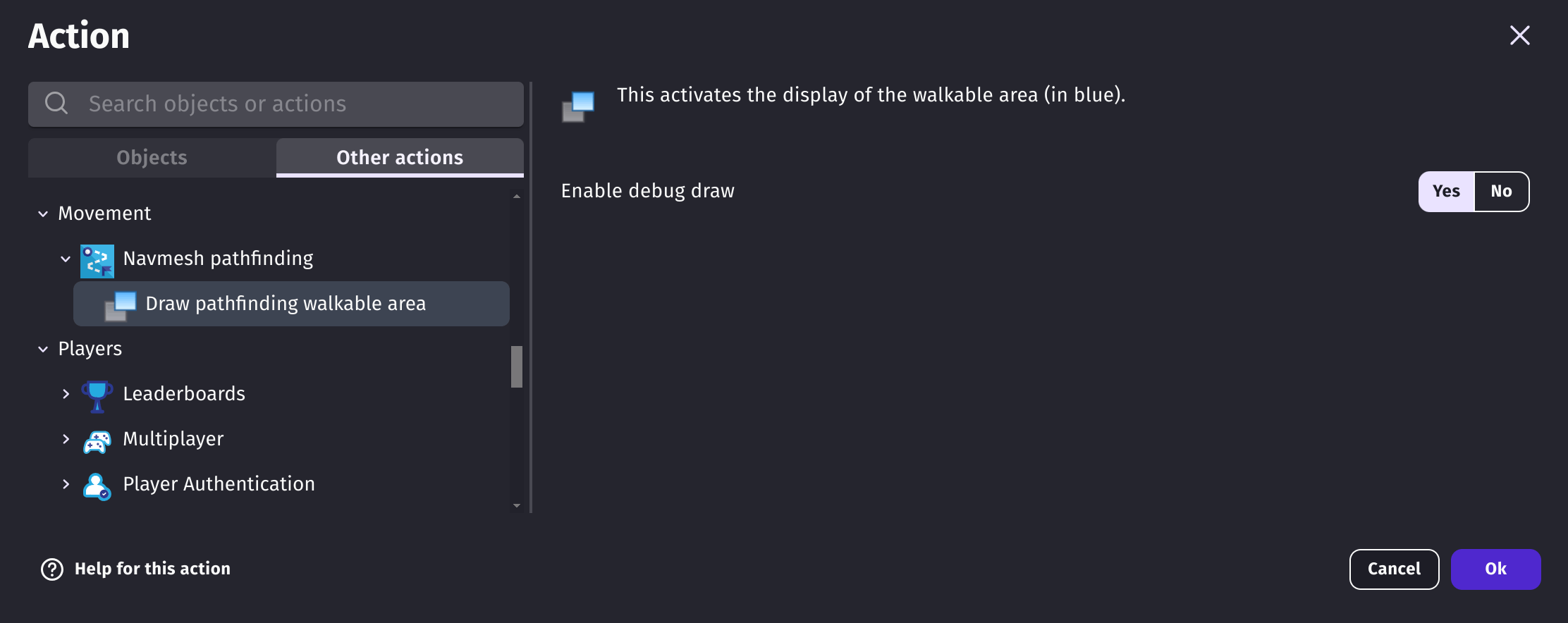
Try to modify the following scene properties and check the effects on the navigation mesh by running a preview:
- Max. stair height – If characters won't climb stairs, try with a greater value.
- Slope max. angle – If characters won't walk on steep slopes, try with a greater value.
- Walkable depth – If characters won't go under a roof, try with a smaller value.
- Walkable radius – If characters won't go on a tight way, try with a smaller value. It's usually better to keep it automatic (
-1) and change the Radius on characters.
Examples
Tip
See it in action! 🎮
Open these examples online.
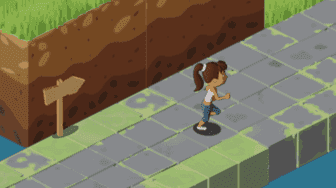
Isometric example
Reference
All actions, conditions and expressions are listed in the nav-mesh pathfinding reference page.